Nanobot: Install and Setup
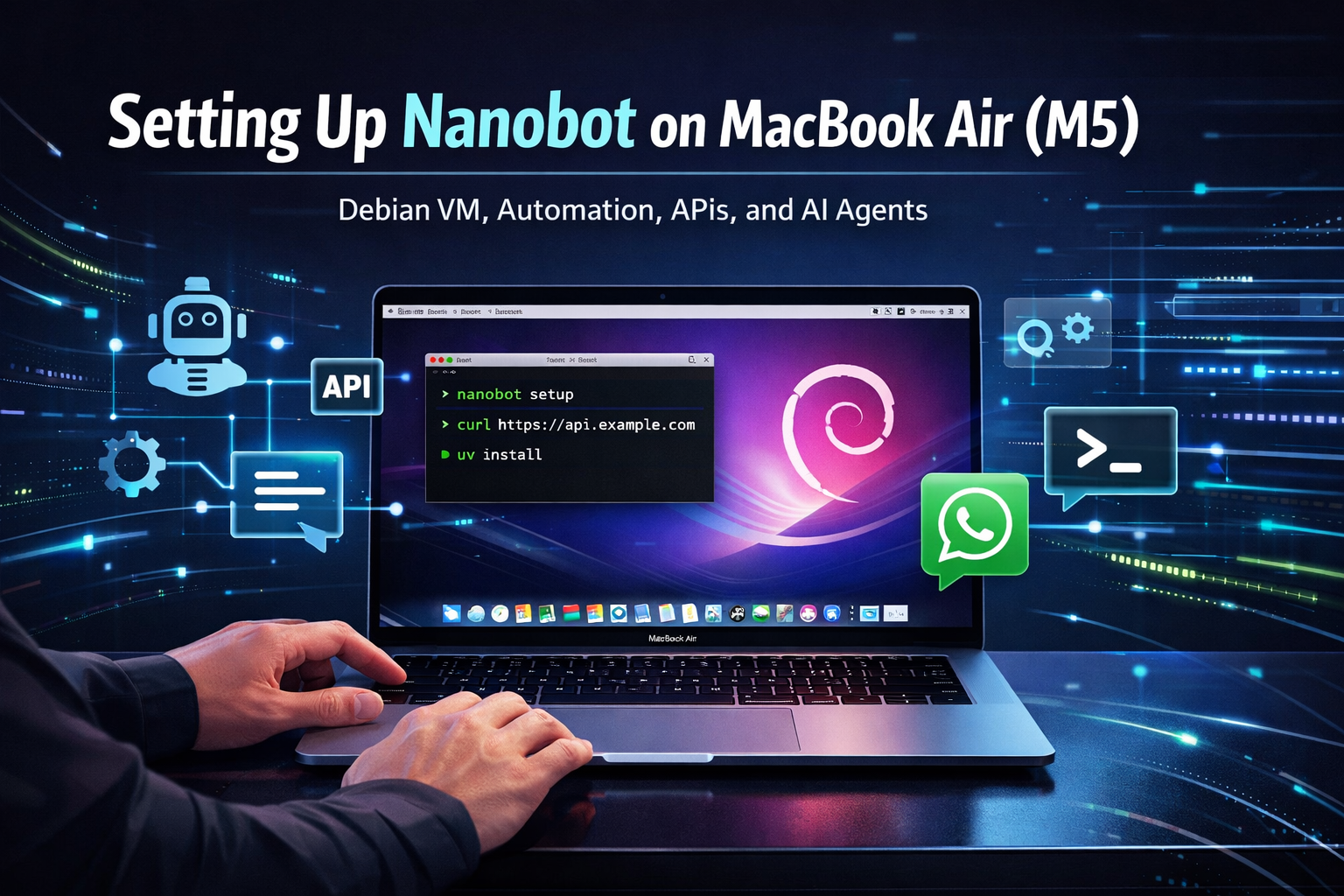
In this article, I'm going to document settting up nanobot on my Macbook Air M5.
Table of Contents
- Install and Setup Debian VM
- Install and setup Nanobot
- If you need to login with a different Codex account?
- How to clear context window?
- Modify SOUL.md
- Setup first scheduled task
- Voice transcription using Grok
- How to run 2 commands in background?
- Setting up Clawhub
- Install Homebrew dependencies
- Useful skills
- Templates for: AGENTS.md / HEARTBEAT.md / SOUL.md / TOOLS.md / USER.md
- Adding web browsing capability
- Expose agents as POST API (+ callback or polling)
- Miscellaneous links
I have tried this setup both on:
- Debian 12 VM running on Mac using UTM.
- Macbook Pro Intel (2015) running MacOS Monterey
The instructions below cover both MacOS and Debian. Feel free to skip the parts that don't apply to your OS of choice.
Install and Setup Debian VM
- Install UTM on mac using brew:
brew install --cask utm - Download Debian 12 arm64 prebuilt VM (you will need to signup and/or login on archive.org to download)
- Unzip the downloaded file and double click on extracted file. It will load the image in UTM automatically.
- Boot into Debian VM (username and password is
debian, change it using Debian Settings app). - Disable suspend on Debian (as I have been unable to get VM out of suspended state using keyboard or mouse, and then I'm forced to do a forced poweroff of VM):
- Click the far upper right corner power button on Debian desktop.
- Click the settings gearwheel in the resulting dropdown box.
- Click "Power" in the left menu of the resulting popup settings window.
- Under "Power Saving Options" select "Never" instead of "5 minutes".
- Open Debian Settings app, search "Screen Settings" and disable blank screen also disable automatic screen lock.
- Optional: If you want dock/taskbar to show always: Open https://extensions.gnome.org/extension/1160/dash-to-panel/ on Debian browser and click "Install"
- To be able to pause VM and close UTM window: First shutdown VM. Then edit VM settings, under Display, change "Emulated Display Card" from
virtio-gpu-gl-pci (GPU Supported)tovirtio-gpu-pci. This should deselectGPU Acceleration Supported, which is needed to be able to pause the VM and close UTM window.- To test that it is working, boot Debian VM, click "Pause" button in top left corner of UTM window. Then try to close UTM window with "Close" button in top left corner. If no warning dialog is shown, it's working correctly.
- Update apt using:
sudo apt update - Install curl:
sudo apt install curl
Install and setup Nanobot
- Install uv using:
- On Debian:
curl -LsSf https://astral.sh/uv/install.sh | sh - On MacOS Monterey on Intel Mac: Download INTEL uv v0.10.11 from here, unzip, and copy/paste both files in a
$PATHfolder. I copied it to/usr/local/bin
- On Debian:
- Install nanobot:
uv tool install nanobot-ai - Run:
nanobot onboard - It seems nanobot doesn't supports Claude Code Pro/Max Plans via Oauth, but it supports Codex via OAuth:
nanobot provider login openai-codex - Open
~/.nanobot/config.jsonin editor, and under"agents", change model to:"model": "openai-codex/gpt-5.5"and"reasoningEffort": "low".- Use
openai-codex/gpt-5.4, if gpt-5.5 isnt working. Codex models are deprecated, don't use them. Also there is some evidence that some model versions could misbehave with tools like nanobot, so do NOT write off nanobot if model responses are bad; try to change model version and see if the issue persists.
- Use
- Run and chat with nanobot agent:
nanobot agent - To add Whatsapp as a channel, you need git and npm.
- For debian, install it using:
curl -fsSL https://deb.nodesource.com/setup_20.x | sudo -E bash -sudo apt install -y nodejsnpm --versionsudo apt install git
- For Mac OS Monterey on Intel Mac: Use nvm+npm to install based on instructions here. Mac should already have
gitinstalled.
- For debian, install it using:
- Add Whatsapp as a channel using:
nanobot channels login- This will print a QR code on Terminal. Scan it using Whatsapp > Linked Devices. Suppose you logged in to whatsapp account 91XXXXX-YYYYY.
- After successful login, terminal will print "✅ Connected to WhatsApp". Press CTRL+C to exit this process.
- Open
~/.nanobot/config.jsonand find the whatsapp section, and edit it like this (note thatenabledneed to be set totrueandallowFromcontains country code followed by 10 digit mobile number):{ "channels": { "whatsapp": { "enabled": true, "allowFrom": ["1234567890","919999988888"] } } } - Open 2 terminal tabs and run these two processes in 2 tabs:
# Terminal 1
nanobot channels login

# Terminal 2
nanobot gateway
- Now to test whatsapp setup: based on the example above, send a message to 91XXXXX-YYYYY from 919999988888 and ai should intercept the message and reply.
- I have not been able to use 91XXXXX-YYYYY to talk to AI, I am using 2 numbers at the moment. If you know how to fix this, drop me an email, pretty please!
If you need to login with a different Codex account?
I'm using Nanobot with ChatGPT/Codex $20 plan.
- Open this URL, make sure you are logged in with the same ChatGPT account that is being used in nanobot's Codex.
- Scroll down to "Secure sign in with ChatGPT", click on "Disconnect" button next to "Codex CLI".
- Use this command to start Codex OAuth login flow again: `nanobot provider login openai-codex`
How to clear context window?
/new works on Whatsapp.
Modify SOUL.md
To start, take Openclaw's SOUL template from this url and paste it inside ~/.nanobot/workspace/SOUL.md
Restart nanobot gateway and nanobot whatsapp bridge running in 2 terminal tabs.
Setup first scheduled task
Simply send message with Add a periodic task _____ e.g.
Add a periodic task:
Send a message here every 60 minutes with text "RUNNING"
Voice transcription using Grok
Not supported on Whatsapp yet, it seems based on this commit. Try it on Telegram if you are using it.
How to run 2 commands in background?
so it starts automatically and restarts on failure.
Setting up Clawhub
Clawhub works with Nanobot. Just download the zip file from Clawhub and extract it inside ~/.nanobot/workspace/skills. For e.g.
- Visit https://clawhub.ai/buksan1950/reddit-readonly and click "Download zip" button.
- Unzip the downloaded file in
~/.nanobot/workspace/skills/.- The folder structure would look something like this:
~/.nanobot/workspace/skills/reddit-readonly-1.0.0/<OTHER_FILES>
- The folder structure would look something like this:
- Restart
nanobot gateway(and optionallynanobot whatsapp bridgethough I don't think this is needed) running in 2 terminal tabs. - Run this prompt to check that skill is working correctly:
Can you search ClaudeAI subreddit using reddit-readonly skill and find top 10 posts in last 1 month?
Install Homebrew dependencies
I try to update this section periodically by running "brew list" command:
- go
- jq
- ffmpeg
- python@3.14 (or whatever latest version is)
- ripgrep
- ruby
- rust
- macdown-3000
- codex
Useful skills
Please visit my other blogpost for a list of skills that I'm using reliably.
Templates for: AGENTS.md / HEARTBEAT.md / SOUL.md / TOOLS.md / USER.md
TBD
Adding web browsing capability
TBD
Expose agents as POST API (+ callback or polling)
TBD:
- /reddit-read/ endpoint which runs a fixed prompt, api token, task id (url parameters/input?), polling