How to Control Your Mac's Claude Code from an Android Phone Using SSH and Tailscale
Use Mac's Claude Code on Android via SSH by configuring Tailscale, Tmux, ZSH, DaRemote
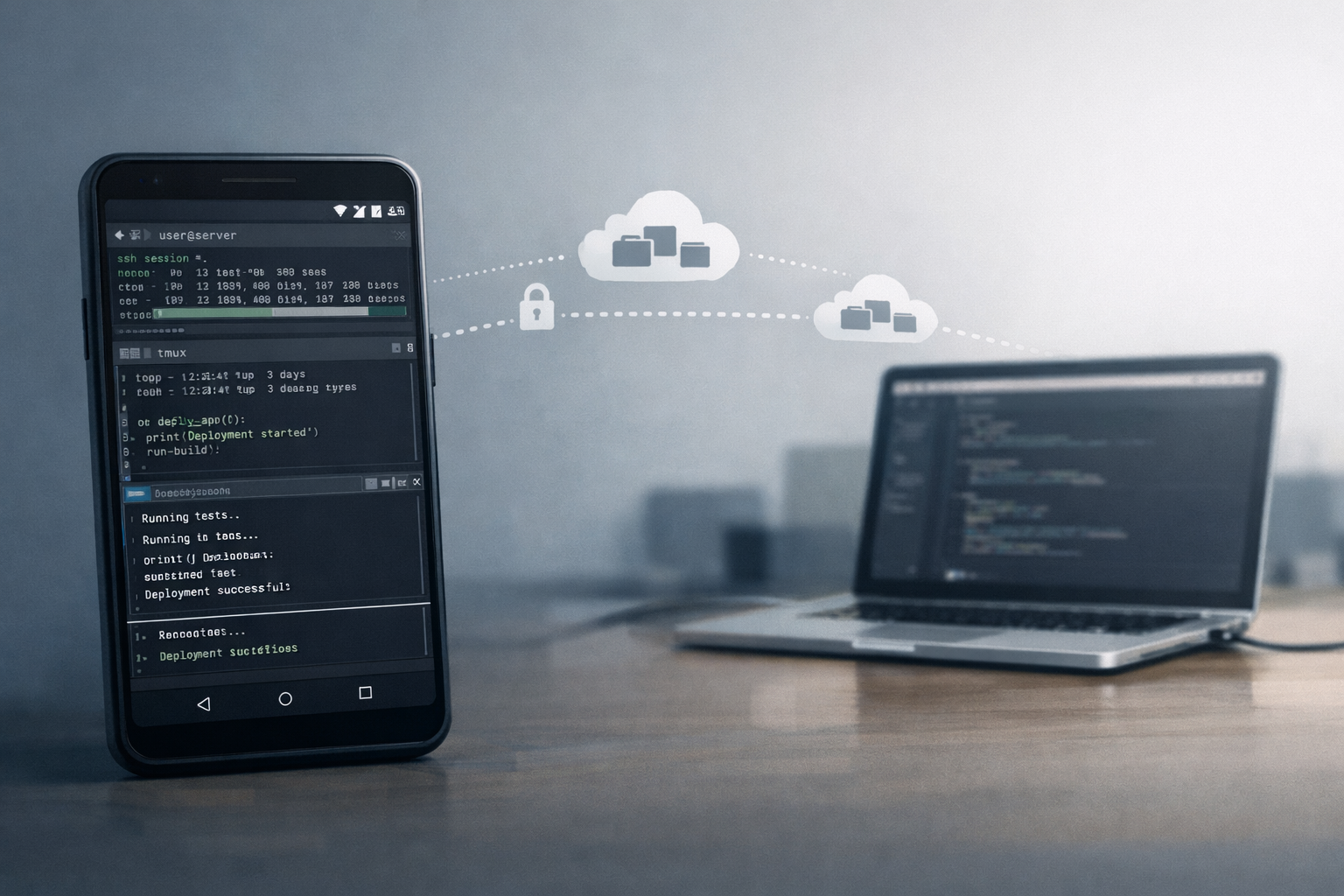
Ever wanted to run Claude Code while you’re away from your desk? With the right setup, you can turn your Android phone into a powerful remote terminal. This guide walks you through setting up seamless SSH access from your Android device to your Mac using DaRemote Android SSH client, Tailscale, tmux, zsh and a few helpful configurations.
Don’t use mosh, use ssh instead
While this page suggests that mosh works with tailscale+mac, I could not get it to work with Mac’s firewall (tried both with pf and Firewall in System Settings). I tried both Opus4.5 and Gemini 3 Pro, and while they suggested dozens of config changes, nothing worked.
Moreover, this hackernews discussion suggests that with tailscale, the benefits that mosh had over ssh don’t matter.
While tools like mosh promise better mobile connectivity, real-world experience shows that with Tailscale’s connection management, plain SSH works beautifully. Tailscale already handles the connection persistence that mosh was designed to solve.
So my suggestion is to just use SSH first and see if the additional pain of setting up mosh would be worth it or not.
Part 1: Setting Up Your Mac
Install the Essential Tools
Start by installing these core utilities on your Mac:
- tmux – A terminal multiplexer that keeps your sessions alive
- Tailscale – A zero-config VPN that makes remote access simple. Signup with your Google account and you can use free plan for personal usage.
- Configure Tailscale to run on login
- Amphetamine – Prevents your Mac from sleeping
- Modify Amphetamine’s config so that when it is enabled, mac never sleeps indefinitely.
Enable remote access through System Settings
Configure Automatic tmux Sessions
When you SSH into your Mac, you want to immediately land in a persistent tmux session (I have named it as ai). Add this to your ~/.zshrc:
# This automatically launches tmux whenever you SSH in (but not when you're already in tmux or using a local terminal).

if [[ -n "$SSH_CONNECTION" ]] && [[ -z "$TMUX" ]]; then
    tmux attach -t ai 2>/dev/null || tmux new -s ai
fi
This ensures every SSH connection automatically attaches to a session named ai (and creating if it doesn’t exists, say if Mac got restarted), so that you can directly start working on existing claude code instances.
Clean Up the tmux Status Bar
The default tmux status bar displays information that’s unnecessary on a small-width phone screen:
[1] 0:zsh* "Some-MacBook-Pro.local" 18:12 20-Jan-26
To hide the hostname and timestamp, run these 2 commands:
echo '# Hide hostname and date time stamp from tmux status bar:' >> ~/.tmux.conf
echo 'set -g status-right ""' >> ~/.tmux.conf
Sync Your Working Directory to the Cloud
Put your Claude Code working directory on a cloud storage service like Google Drive, OneDrive, or Dropbox. This lets you access files generated by Claude Code directly from your Android phone without needing to transfer them manually.
Set a Default Working Directory for tmux
If you use a specific folder for your Claude Code work (especially one synced to cloud storage, as mentioned in previous step), configure tmux to always open there. Add this to ~/.tmux.conf:
# Set default directory for new windows and panes:
bind c new-window -c "/path/to/folder"
bind '"' split-window -c "/path/to/folder"
bind % split-window -h -c "/path/to/folder"
set-hook -g session-created 'send-keys "cd /path/to/folder" Enter'
Replace /path/to/folder with your actual working directory. After updating the config, reload it using:
tmux source-file ~/.tmux.conf
Shorten Your Shell Prompt
Mobile screens have limited width. The default zsh prompt wastes valuable space:
user@hostname ~ %
Shorten it by adding this to ~/.zshrc:
# Show shell prompt as cwd %
PROMPT='%1~ %# '
Exit and restart your terminal for the change to take effect.
Part 2: Setting Up Your Android Phone
Install the Required Apps
You’ll need two apps on your Android device:
- DaRemote – A capable SSH client
- Tailscale – The same VPN service, connecting your phone to your Mac
Configure DaRemote
Add your Mac’s Tailscale address as a server in DaRemote. You can find your Mac’s Tailscale IP in the Tailscale app or admin console.
Disable Battery Optimization
Android aggressively manages background apps to save battery, which can kill your SSH connection when you switch apps. Disable battery optimization for both Tailscale and DaRemote apps. This keeps your SSH sessions alive in the background for instant resumption.
Set Up File Syncing with FolderSync
If you’ve synced your Claude Code working directory to a cloud service, install the FolderSync app (free version will suffice). Configure it to automatically sync your chosen cloud folder to your Android device every 5 minutes (this is the minimum duration available on free plan).
This way, when you want to review Claude Code’s output on the go, the files are already downloaded and waiting.
You can also dictate your prompt in a text file, put it in synced folder and then prompt claude code to act upon instruction written in the file. 2-way, input and output.
Optional: Helpful Companion Apps
Consider installing these apps to view Claude Code’s output on your phone (which will be synced automatically by Foldersync app):
- A Markdown editor or viewer
- A PDF viewer
- HTML files (Chrome??)
- Some gallery app for viewing SVG files
- Any other format that you generate.
Troubleshooting: “Missing Claude API key” Error
If you encounter the Missing API key · Run /login error in Claude Code over SSH:
- In Claude Code, run
/logoutfirst - In another terminal, run
security unlock-keychainand enter your Mac password when prompted - Back in Claude Code, run
/loginand follow the authentication steps - Exit Claude Code and reopen it to confirm the error is resolved
Final Thoughts
This setup transforms your Android phone into a genuine remote development terminal. The combination of Tailscale’s reliable connectivity, tmux’s session persistence, and thoughtful configuration tweaks creates a surprisingly smooth mobile coding experience for me.
Whether you’re debugging an issue from a coffee shop, reviewing Claude Code output during your commute, or just checking on a long-running process, having remote access to your Claude Code opens up new possibilities for staying productive on the move.